8 Best Virtual Assistant Tools for Small Businesses [Free and Paid]
The software a remote assistant needs to work in your business: shared email, chat, tasks, passwords, SOP videos, time tracking and a CRM, with pricing and setup advice.

On this page
💡 Key Takeaways:
1) The best virtual assistant tools cover shared email and documents, team chat, task tracking, password sharing and screen recording. Time tracking and a CRM come later, once the role takes on sales or support work.
2) Most of these tools have a free plan that works for one owner and one assistant. Free tiers tend to break on message history, user caps or missing admin controls within the first few months.
3) Buy every seat under the business's own account, share logins through a password manager, and record processes on video so a replacement assistant can pick up the work without starting from zero.
Better tools turn VA hours into revenue
Hyperstaff has placed 70+ pre-vetted virtual assistants with 30+ clients, with rates from $3/hour across five talent regions. Our dedicated virtual assistant services put a specialist into your business within 5 business days, backed by a dedicated account manager and an Operations Vault that keeps your SOPs, tools and context written down for you.
Best Virtual Assistant Tools Comparison
The best virtual assistant tools for most small businesses are Google Workspace, Slack, Asana, 1Password, Loom, Hubstaff, Notion and HubSpot CRM. Together they handle communication, task tracking, secure access, training, hours and customer data.
The table compares free plans, entry pricing and the job each tool does for an assistant. Vendors change prices often, so treat the figures as ranges and confirm them on each pricing page before you buy.
| Tool | Best for | Free plan | Paid pricing (per user, per month) | Typical VA use |
|---|---|---|---|---|
| Google Workspace | Shared email, docs and calendars | Trial only | About $7 to $22 on annual plans | Inbox management, scheduling, documents |
| Slack | Daily team chat | Yes, 90 days of message history | About $7.25 to $15 on annual plans | Quick questions, handoffs, huddles |
| Asana | Task and project tracking | Yes, up to 2 users | About $10.99 to $24.99 on annual plans | Recurring tasks, deadlines, approvals |
| 1Password | Sharing logins safely | Trial only | About $24.95 a month for 10 users, or $8.99 per user on Business | Access to business tools without exposing passwords |
| Loom | Recorded walkthroughs | Yes, 25 videos up to 5 minutes | About $18 to $24 | Training, SOP videos, feedback |
| Hubstaff | Time tracking and timesheets | Yes, 1 seat | About $5 to $12 per seat, by plan and billing term | Hour logs, activity reports, payroll |
| Notion | SOP library and team wiki | Yes, 7-day page history | About $10 to $20 | Process docs, checklists, meeting notes |
| HubSpot CRM | Contacts, deals and inbox | Yes, up to 2 users | About $20 per seat on Starter month to month, less on annual or promo pricing | Lead follow-up, pipeline updates, support tickets |
Best Virtual Assistant Tools Reviews
Each review covers what the tool does for an assistant, where the free plan stops being enough, and the setup mistakes that cost owners time later. The order follows how most businesses build a stack, starting with communication and ending with specialist software.
1) Google Workspace: Best for shared email and calendars
Key Highlights
- Business email on your own domain
- Delegated Gmail and calendar access
- Docs, Sheets and Drive in one login
- Starter includes 30 GB storage per user
- Admin console to add or remove users
How Gmail delegation works for a VA
Gmail delegation lets an assistant read, send and organize mail from your inbox without ever knowing your password. Calendar delegation works the same way, so bookings land on your calendar under your name.
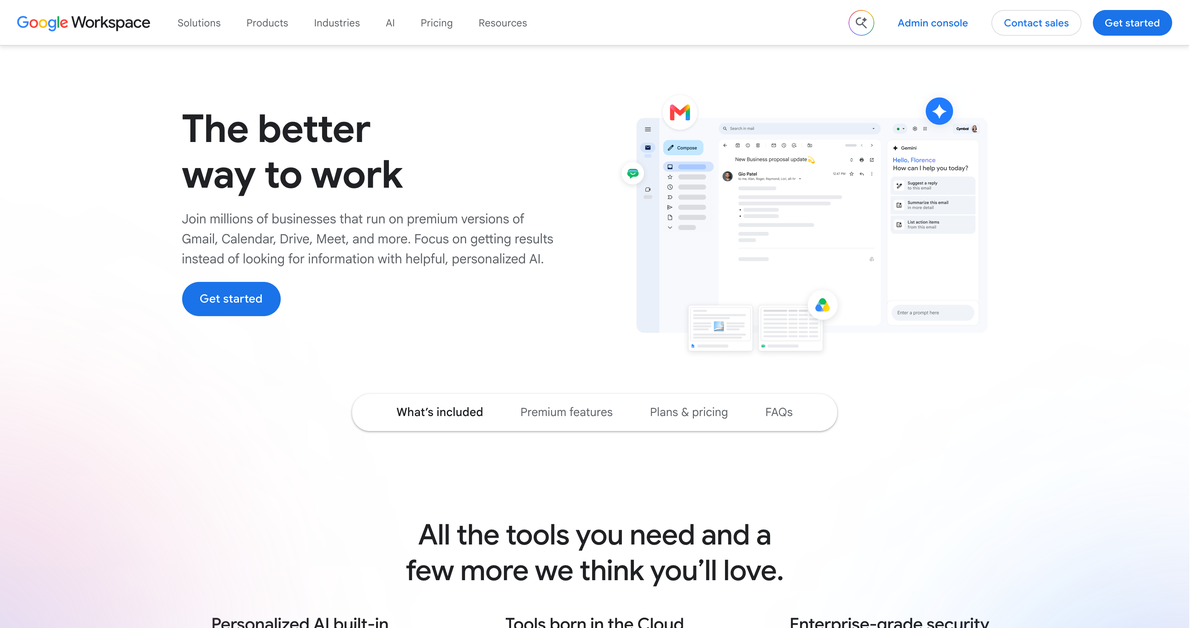
Google Workspace pricing runs from about $7 per user on Business Starter to about $22 on Business Plus with an annual commitment, and flexible monthly billing costs more. Give the assistant their own seat on your domain so you can revoke it in one click when the engagement ends.
Pros
- Delegation without sharing passwords
- Real-time co-editing in Docs and Sheets
- Shared drives stay with the business
- Works on any device or browser
- Admin can reset access in seconds
Cons
- No permanent free business plan
- Starter storage fills up with video files
- Shared drives need Standard or above
- Admin settings take time to learn
- Personal Gmail accounts complicate ownership
Is Google Workspace worth it for a VA?
Almost every assistant role touches email, calendars or shared files, so Workspace is the first seat to buy. Microsoft 365 is the obvious alternative if your business already runs on Outlook.
2) Slack: Best for team chat
Key Highlights
- Channels per project or client
- Free plan keeps 90 days of messages
- Up to 10 app integrations on Free
- Huddles for quick voice calls
- Guest access on paid plans
Slack free plan limits for a remote team
Slack's Free plan hides messages older than 90 days, limits you to 10 integrations and restricts huddles to two people, according to Slack's pricing page. For a new assistant, that 90-day window matters: the answers to their first-month questions vanish right when they'd want to search them again.
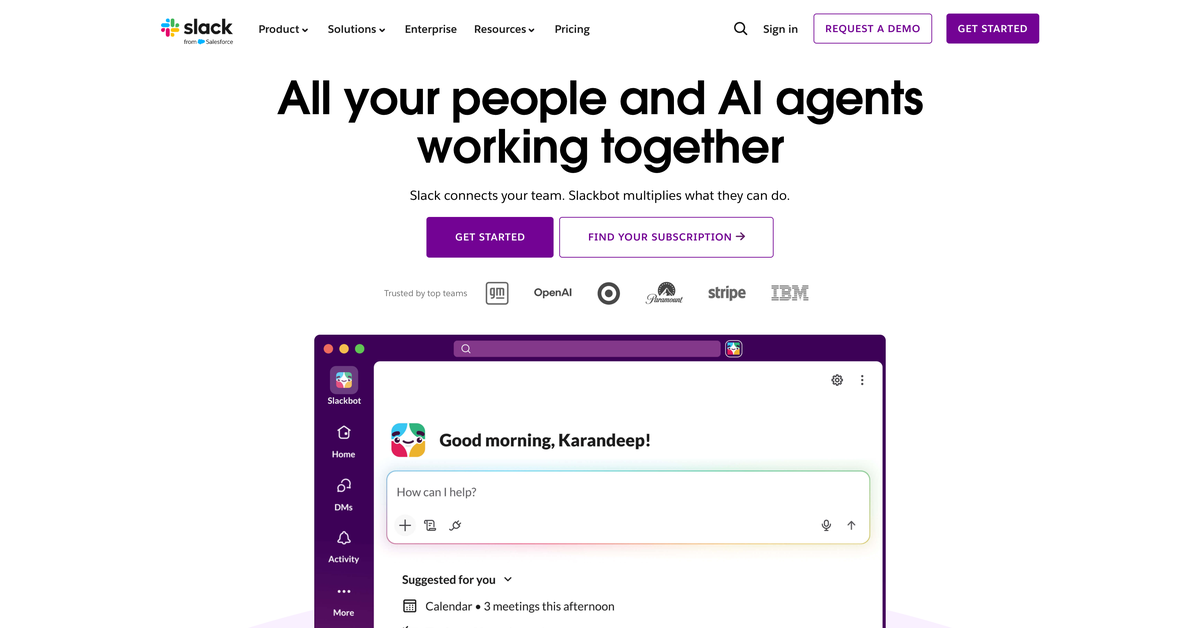
Pro costs about $7.25 per user on annual billing, and Business+ about $15. A channel per workflow (#invoices, #support, #daily-report) keeps instructions findable later.
Pros
- Fast answers keep work moving
- Threads keep context in one place
- Connects to Asana, Drive and HubSpot
- Status settings show working hours
- Strong mobile apps for owners
Cons
- Free history limit erases training answers
- Constant pings can interrupt deep work
- Decisions get buried in chat
- Paid seats add up as teams grow
- Easy to skip writing proper SOPs
Should a VA team pay for Slack?
Slack works best for quick questions and daily check-ins. Anything an assistant will repeat belongs in a written process they can find again.
3) Asana: Best for recurring tasks
Key Highlights
- Free Personal plan for up to 2 users
- Recurring tasks with due dates
- Timeline and reporting on Starter
- Unlimited automations on paid plans
- 100+ free integrations
Recurring tasks and approvals in Asana
Recurring tasks are the main reason to put an assistant in Asana. Weekly invoicing, Monday reporting and month-end reconciliation all repeat on their own, with the checklist attached each time.
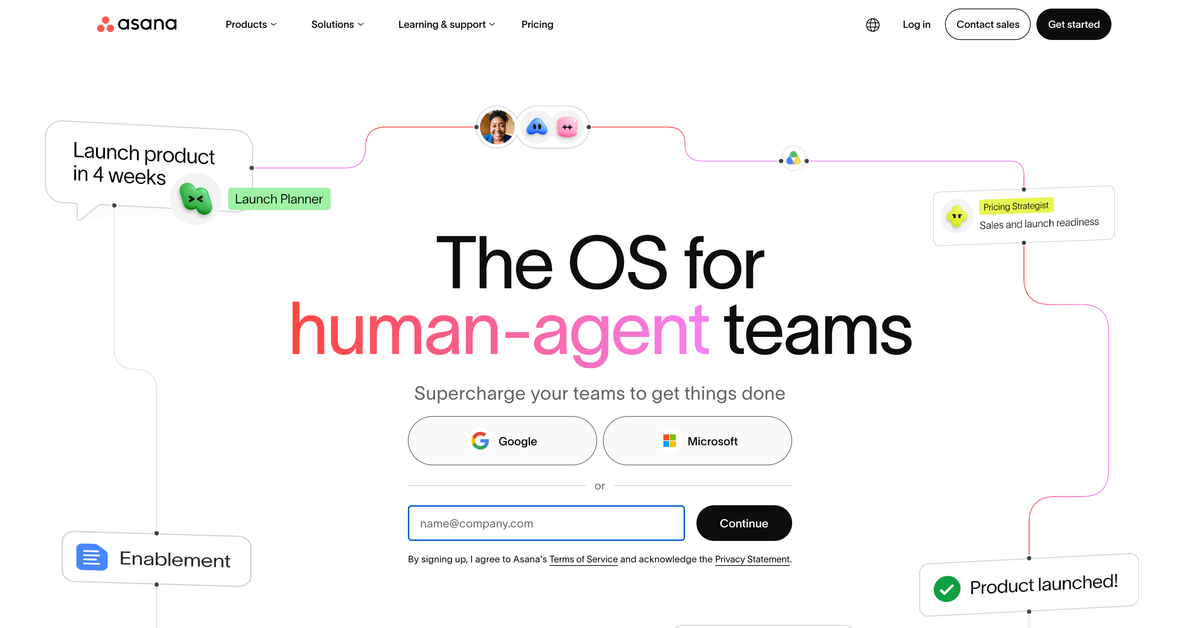
The Personal plan is free for up to 2 users, Starter costs about $10.99 per user on annual billing and Advanced about $24.99, per Asana's pricing page. For one owner and one assistant, the free plan covers more than most people expect.
Pros
- Clear ownership of every task
- Comments stay attached to the work
- Templates speed up repeat projects
- Board, list and calendar views
- Free plan fits a two-person setup
Cons
- Free plan caps at 2 users
- Automations need a paid plan
- Too many fields slow assistants down
- Monthly billing costs noticeably more
- Owners often stop checking it
Is Asana overkill for one assistant?
Asana fails in a predictable way: the owner builds an elaborate project, then goes back to assigning work by chat. The tool only works if new requests go in as tasks every time.
4) 1Password: Best for secure login sharing
Key Highlights
- Shared vaults with set permissions
- Teams Starter Pack includes 10 members
- Business plan adds SSO integrations
- Access revoked in one step
- Security alerts for weak passwords
How shared vaults protect your logins
A shared vault lets an assistant log in to your tools while the passwords stay hidden behind autofill. When someone leaves, removing them from the vault removes their access to everything inside it.
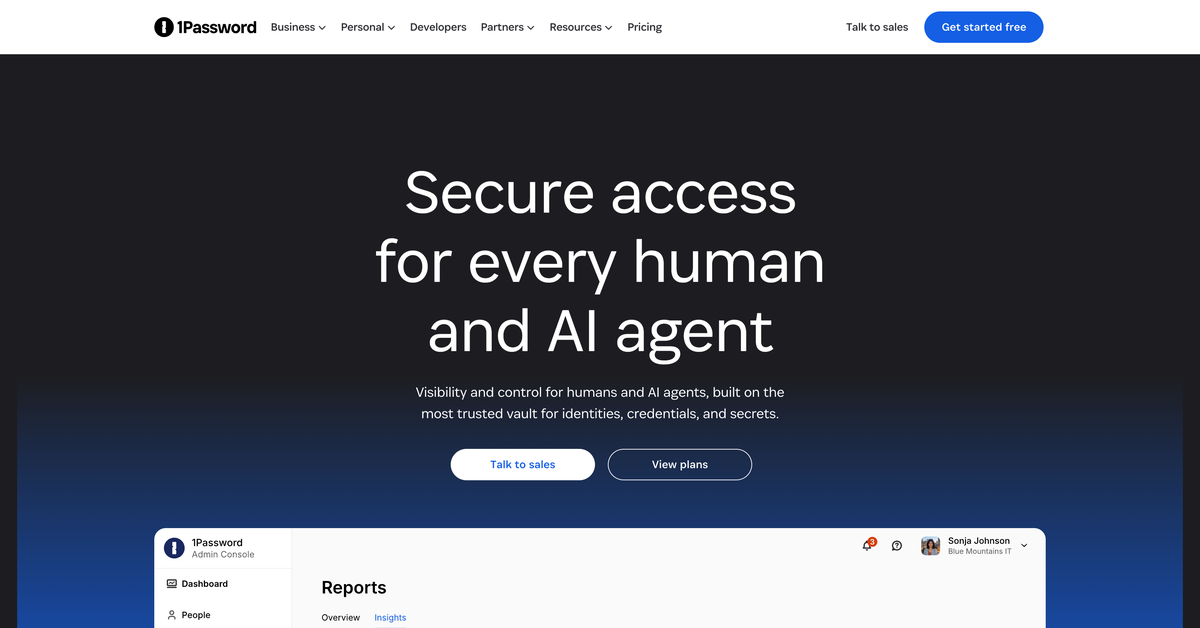
1Password's business pricing lists the Teams Starter Pack at $24.95 a month for 10 members and Business at $8.99 per user, both billed yearly. Bitwarden is a cheaper alternative with a free tier, if budget is tight.
Pros
- Passwords never pass through chat
- Vaults split access by role
- Flat price suits small teams
- Stores 2FA codes alongside logins
- Offboarding takes minutes
Cons
- No permanent free business tier
- Extra Starter Pack seats cost more each
- Learning curve for non-technical owners
- Some sites block autofill
- Owners must keep vaults tidy
Is 1Password worth adding on day one?
Pasting passwords into Slack or email is the most common access mistake owners make with a new assistant. A password manager fixes it for less per user each month than one hour of an entry-level remote specialist's time.
5) Loom: Best for video SOPs
Key Highlights
- Screen and camera recording together
- Free plan allows 25 videos
- Free recordings cap at 5 minutes
- Business removes video limits
- Viewers comment at exact timestamps
Using Loom to train a virtual assistant
Screen recordings capture the clicks, the order and the small judgment calls that a written checklist leaves out. An assistant can rewatch a five-minute walkthrough as often as they need without interrupting you.
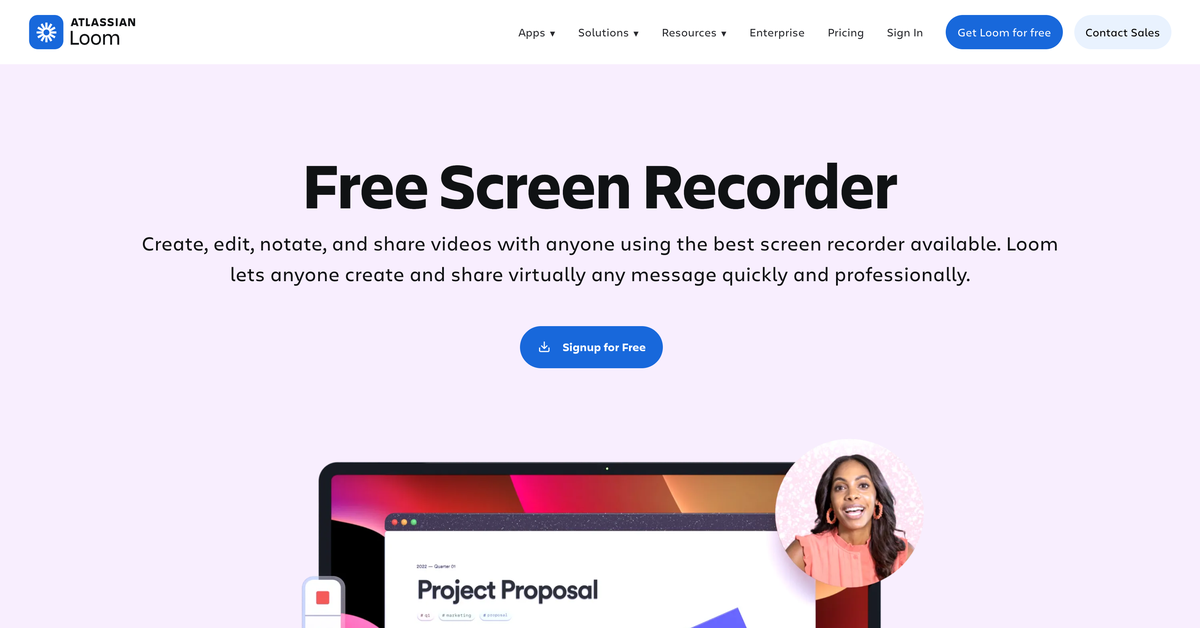
The free Starter plan allows 25 videos, 5-minute recordings and 720p quality, while Business costs about $18 per user and Business + AI about $24, per Loom's pricing page. Only the person recording needs a paid seat, since viewers watch for free.
Pros
- Faster than writing long guides
- Shows context a document can't
- Easy to share by link
- Async feedback cuts meetings
- Works well across time zones
Cons
- 25-video cap fills up fast
- 5-minute limit on free recordings
- Videos go stale when tools change
- Hard to search inside long videos
- Paid seats cost more than most tools here
When Loom saves the most time
Loom works best as the first draft of a process. Video alone ages badly once a tool's interface changes, and nobody wants to scrub through ten recordings to find one step.
6) Hubstaff: Best for time tracking
Key Highlights
- Free plan for the account owner only
- Timesheets and activity levels
- Optional screenshots
- Paid plans billed per seat
- 14-day trial without a card
Timesheets and activity tracking in Hubstaff
Hubstaff records time against projects and produces timesheets for payroll or client billing. It also captures activity levels and optional screenshots, which some owners like and many assistants find uncomfortable.
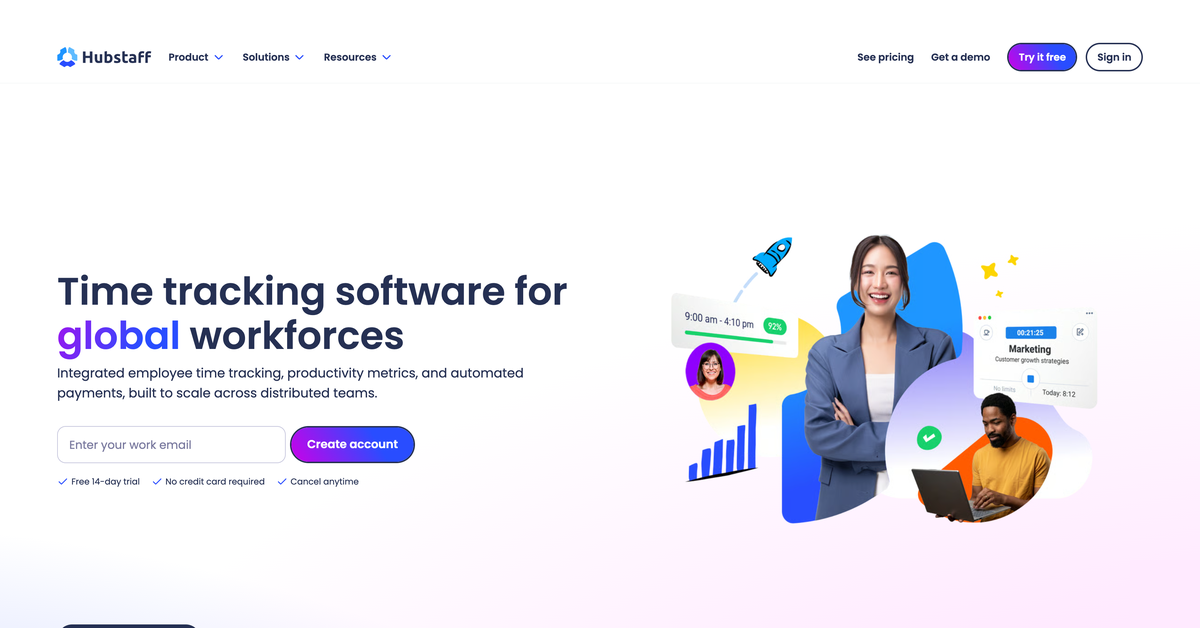
The free plan covers one seat for the account owner, according to Hubstaff's plan documentation, and paid plans run roughly $5 to $12 per seat per month depending on tier and billing term. Toggl Track is a lighter option if you only need timesheets.
Pros
- Accurate hours for billing
- Reports by project or client
- Payroll and invoicing features
- Useful for part-time hour bundles
- Desktop and mobile apps
Cons
- Screenshots can damage trust
- Activity scores miss offline work
- Free plan fits only one person
- Add-ons raise the real price
- Another app running all day
When time tracking helps a VA team
Practitioners split on this one. Some owners want screenshot-level proof of every billed hour, while others argue that tracking keystrokes measures typing and misses the phone calls, reading and thinking that make up good work.
7) Notion: Best for an SOP library

Key Highlights
- Pages, databases and checklists
- Free plan with 7-day page history
- Up to 10 guests on Free
- Plus and Business add longer history
- Templates for wikis and SOPs
Building an SOP wiki in Notion
An SOP library in Notion gives an assistant one link for every process, login policy and client preference. Pages can hold Loom videos, checklists and tables side by side.
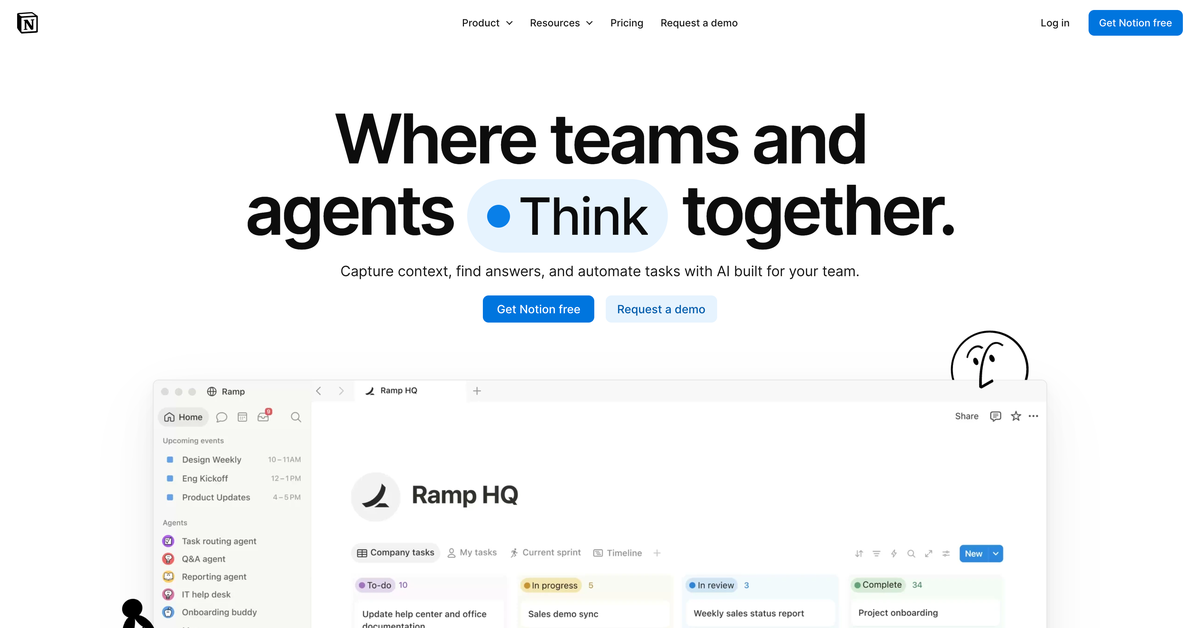
Notion's Free plan allows 10 guests, 5 MB file uploads and 7 days of page history, while Plus costs about $10 per member and Business about $20, with yearly billing cheaper, per Notion's pricing page. Google Docs in a shared folder does the same job if you'd rather not add another tool.
Pros
- Flexible structure for any process
- Embeds videos and files
- Fast search across pages
- Free plan is generous for small teams
- Easy to duplicate templates
Cons
- Blank pages tempt over-design
- Seven-day history on Free
- 5 MB upload cap on Free
- Slower on large databases
- Needs an owner to stay current
Is Notion the right home for SOPs?
An SOP library goes stale the moment a process changes and nobody edits the page. Give the assistant edit rights and make updating the doc part of finishing any changed task.
8) HubSpot CRM: Best for lead follow-up
Key Highlights
- Free CRM for up to 2 users
- Contact and deal pipelines
- Gmail and Outlook integration
- Email open tracking built in
- Paid tiers add more sales and service tools
Logging calls, emails and deals in HubSpot
HubSpot's free CRM logs every email, call and deal stage against the contact, so an assistant handling lead follow-up or support can see the whole history before replying. With that history, a VA can take over a pipeline without asking you about each lead.
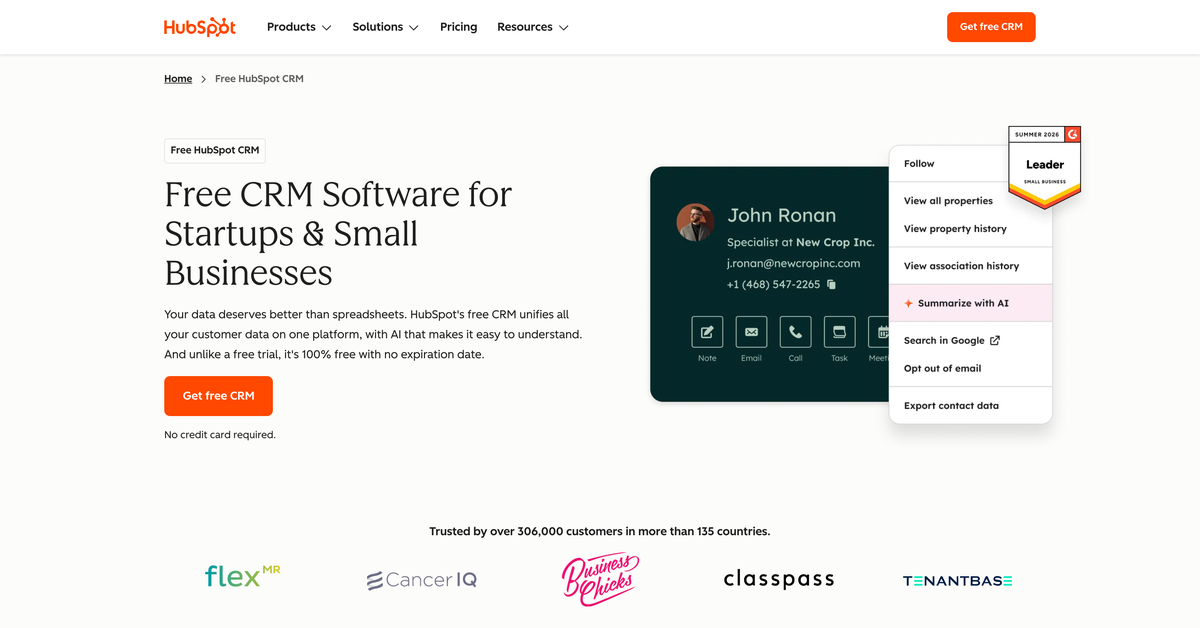
The free CRM covers up to 2 users, per HubSpot's CRM pricing page. Starter lists at roughly $20 per seat month to month, and annual billing or new-customer promotions bring that down for a while.
Pros
- Full contact history in one place
- Free plan suits early pipelines
- Tasks and reminders for follow-ups
- Logs emails from Gmail automatically
- Scales into marketing and service tools
Cons
- Free plan caps at 2 users
- Pricing jumps sharply past Starter
- Promotional prices expire
- Messy data spreads fast without rules
- Too much for a pure admin role
When a virtual assistant needs a CRM
A CRM matters once your assistant handles leads, appointment setting or customer support. For inbox and calendar work alone, it adds setup time without much return.
How to hand over virtual assistant tools to a new hire
Handing over virtual assistant tools comes down to two decisions: who owns each account, and which skills the assistant needs to use them well. Getting both right on day one shapes how fast a new assistant becomes useful.
Account ownership and access
Every tool in this list should sit under an account the business owns. An assistant's personal login might feel faster on day one, but the data and history inside it belong to them.
Ownership also decides how cleanly you can switch people. If you ever need a replacement, the new person should inherit the same accounts, files and history the day they start.
Seats in your name
Business-owned seats mean you pay the vendor directly and add the assistant as a user. Their work product stays in your Drive, your Asana and your CRM.
Avoid letting an assistant buy software on their own card and invoice you for it. The subscription, and often the data, follows the card.
Offboarding in one sitting
Offboarding should take one sitting: remove the Workspace user, the 1Password vault access, Slack and the CRM seat. Keep a list of every tool the assistant can reach so nothing gets missed.
Virtual assistant tools and skills
The software is the easy part to buy. What separates a productive assistant is comfort with the category of tool, because most of these products work in similar ways.
An assistant who knows Asana picks up ClickUp in a day or two. A CRM habit, such as logging every call, transfers between HubSpot and Pipedrive without retraining.
Skills that transfer
Transferable skills include email triage, calendar etiquette, writing clear task updates and keeping records tidy. Ask about those in interviews before you ask about any specific brand.
Tool-specific training still matters for your own workflows. Build it from Loom recordings and written checklists, so it lives somewhere other than one person's head.
Where written context helps
Context about your clients, preferences and exceptions is what no software teaches. Hyperstaff writes this down in each client's Operations Vault, which is how a replacement assistant gets briefed in 5 to 7 business days.
Disclaimer: This article is for general information only and doesn't constitute legal, financial or security advice. Tool features and prices change often and belong to their respective owners; confirm current terms on each vendor's website before purchasing. Hyperstaff isn't affiliated with any vendor mentioned.
Common questions
Who pays for my VA's software licenses?
You do, in most setups. Buying seats under your own business account keeps the data with you and lets you remove access instantly when the engagement ends.
Can I run a VA on free virtual assistant tools only?
You can, for a while. Free plans from Slack, Asana, Notion, HubSpot and Loom cover one owner and one assistant, though message history limits and user caps usually push you to paid plans within a few months.
What tools do virtual assistants use for customer support?
Help desks such as Zendesk, Help Scout, Freshdesk and Gorgias are common, along with HubSpot's service tools. Pick one that connects to your store or CRM so the assistant sees order history before replying.
Should my virtual assistant use AI tools like ChatGPT?
It depends on the task and your data rules. AI tools help with drafts, summaries and research, but set a clear policy on what customer or financial data can go into them before the assistant starts.
What are the best virtual assistant tools for small businesses on a tight budget?
Start with Google Workspace for email and files, plus the free plans of Slack, Asana and Loom. Add a password manager next, since it protects every other account, and hold off on a CRM until the assistant handles leads.
Book a free 15 min call
We place a pre-vetted specialist in 5 business days, fully managed, from $3/hour.