Personal virtual assistant tools worth setting up first
Seven personal virtual assistant tools, what each one costs, and how to give an assistant access without handing over your passwords.
On this page
💡 Key Takeaways:
1) Most personal virtual assistants need five to seven tools: email and calendar access, a password manager, a task list, a scheduling link, a chat app, a way to record how you like things done and, for hourly work, a time tracker.
2) A password manager with a shared vault is the first tool to set up, because it lets an assistant log in to your accounts without anyone sending a password by text or email.
3) Free plans cover most one-assistant setups, and the paid tiers in this list cost roughly $5 to $20 per user a month, so software stays a small line next to the assistant's hours.
Turn admin hours back into billable work
Hyperstaff has placed 70+ virtual assistants with 30+ clients across five regions, with rates from $3 an hour. Our dedicated personal virtual assistant services match you with a pre-vetted specialist in 5 business days, and your SOPs, tools and context get written down in an Operations Vault we maintain, so the right access is planned from the kickoff call.
Best personal virtual assistant tools comparison
The best personal virtual assistant tools let an assistant act for you without holding your passwords. Google Workspace and 1Password handle access, and lighter apps cover tasks, booking, chat, handover videos and hours.
Prices below come from each vendor's own pricing page and change often, so read them as starting points. If you're still pinning down what a personal virtual assistant does, settle that first, since the role decides which tools you need.
| Tool | Best for | Free plan | Paid plans from | What your assistant does in it |
|---|---|---|---|---|
| Google Workspace | Delegated email and calendar | Delegation works on personal Gmail | About $7 per user a month (annual) | Sorts and answers mail, books and moves meetings |
| 1Password | Sharing logins | 14-day trial only | About $3 a month; Teams Starter Pack $19.95 a month | Logs in to shared accounts and fills one-time codes |
| Calendly | Booking meetings | 1 event type, 1 calendar | $10 per seat a month (annual) | Sets booking rules, buffers and reminders |
| Todoist | Task handoff | 5 projects, up to 5 people each | $5 a month (annual) | Picks up, comments on and closes requests |
| Slack | Daily messages | 90 days of history | $7.25 per user a month (annual) | Answers requests in threads |
| Loom | Recorded walkthroughs | 25 videos, 5 minutes each | $18 per creator a month | Watches your process and records updates back |
| Hubstaff | Tracking hours | 1 seat | About $5 per seat a month | Logs time against tasks and projects |
Software is the small line in the budget. Most of the spend is hours, which our personal virtual assistant cost guide breaks down by region and experience level.
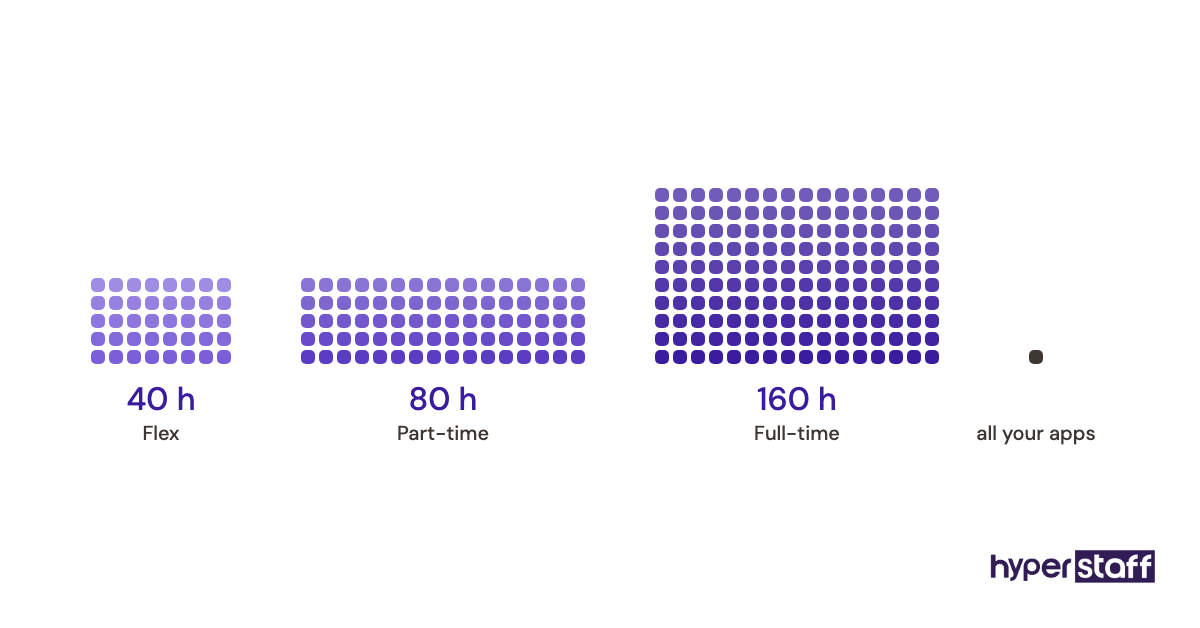
The return depends on which hours you hand off. That math, covered in is a personal assistant worth it, matters more than any single app.
Best personal virtual assistant tools reviews
These personal virtual assistant tools reviews follow the order we'd set them up for a new assistant, starting with access and ending with time tracking. Each one says what the free plan gets you before the paid tier.
1) Google Workspace: Best for delegated email and calendar
Key highlights
- Gmail delegation without sharing your password
- Calendar sharing with edit rights
- Shared folders in Google Drive
- Business plans from about $7 per user a month
- Delegation also works on free Gmail
How Gmail delegation works for an assistant
Gmail delegation lets your assistant open your inbox from their own Google account to read, sort, reply and send mail marked "sent by" them. Your password and two-factor codes stay with you.
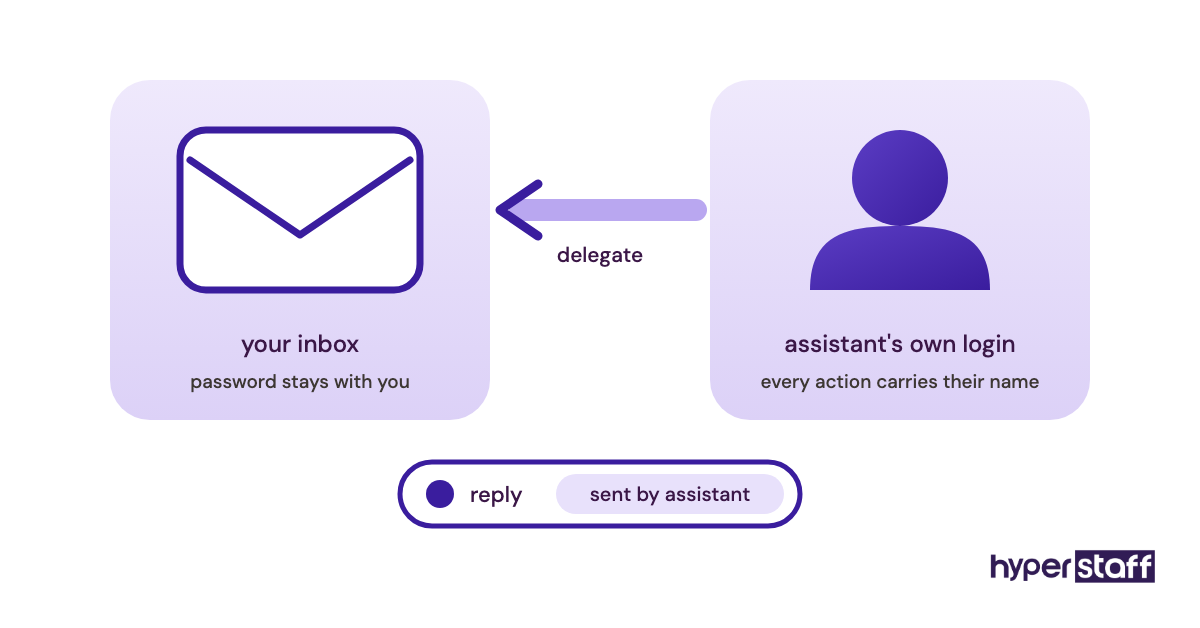
Calendar works the same way: share it with "Make changes to events" and they can book, move and decline for you. Business Starter is about $7 per user a month on an annual plan and Business Standard about $14, per Google's pricing page, though your assistant only needs a seat if they should have a company address.
Pros
- No password sharing for email
- Access can be removed in seconds
- Works on a free Gmail account
- Docs and Sheets come included
- Most other tools sign in with Google
Cons
- Delegation doesn't cover Drive files
- Delegated inboxes work best in a desktop browser
- Edit rights reveal private calendar events
- Workspace admins must switch delegation on
- Prices have risen over the past few years
Our verdict on Google Workspace
Set this up first if your life runs on Gmail. Delegation is the cleanest way to hand over an inbox, and it costs nothing on a free account.
2) 1Password: Best for sharing logins safely
Key highlights
- Shared vaults split by person or purpose
- Autofill on desktop and mobile
- One-time codes stored with the login
- Teams Starter Pack covers up to 10 users
- 14-day free trial
Why a shared vault beats a shared spreadsheet
A shared vault keeps your logins off sticky notes, text threads and Google Sheets. You choose which vault your assistant sees, and removing them from it cuts off every login inside at once.
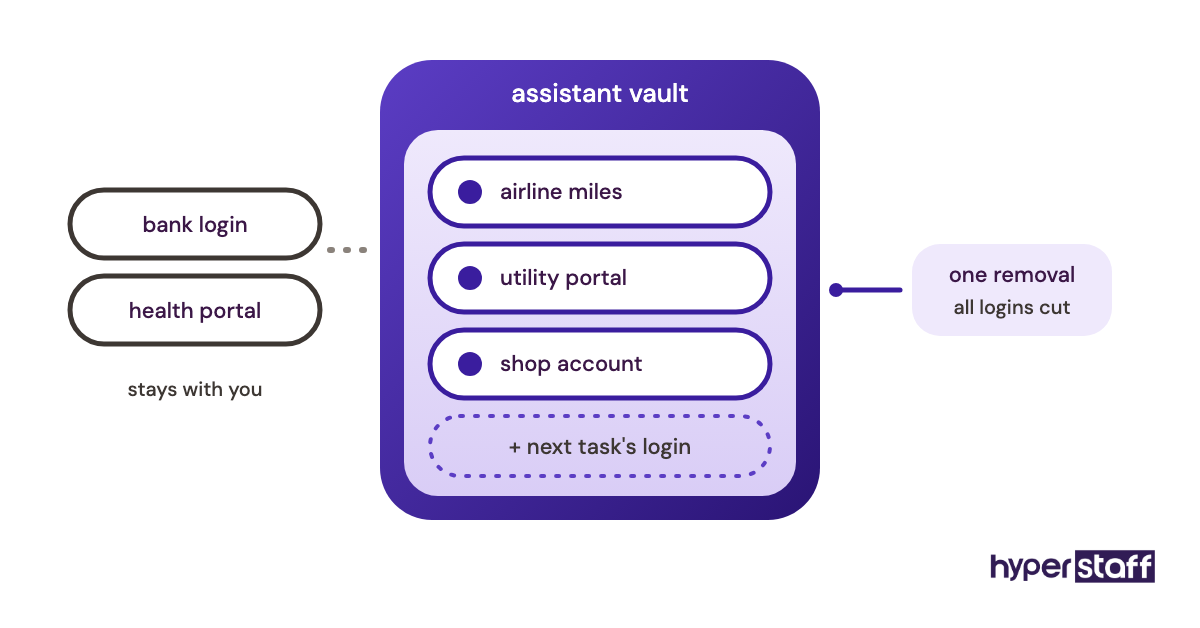
Pricing on 1Password's plans page runs from about $3 a month for one person to $19.95 a month for a Teams Starter Pack of up to 10 users, with Business at about $8 per user. Families costs less, but it's built for households, and adding an assistant to the family vault blurs who can see what.
Pros
- Vault-level permissions
- Autofill cuts login errors
- Stored one-time codes mean no texting you for codes
- Access ends the moment you remove someone
- Watchtower flags reused and breached passwords
Cons
- No free plan, only a trial
- Codes stored next to passwords weaken two-factor
- Your assistant needs a seat on your account
- Text-message codes still go to your phone
- Passwords they've viewed stay known after removal
Should you pay for 1Password?
Yes, if your assistant logs in anywhere beyond Gmail. Security people genuinely disagree on storing one-time codes in the vault: it's less secure, but it's the only way a remote assistant gets past a login without waking you.
3) Calendly: Best for booking without back-and-forth
Key highlights
- Free plan with one event type
- Standard at $10 a seat a month, billed yearly
- Up to 6 connected calendars on Standard
- Automated reminders and follow-ups
- Stripe and PayPal payments on paid plans
Where Calendly fits in an assistant's day
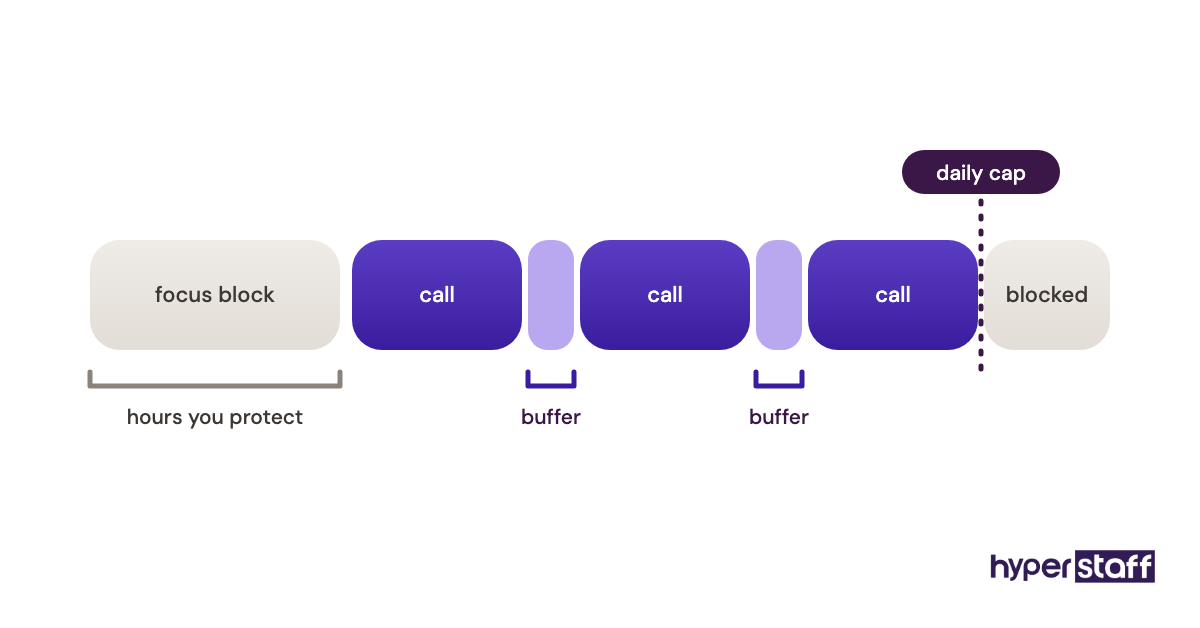
Calendly takes scheduling emails off your assistant's plate: they send one link, the other person picks a slot and the event lands on your calendar. Your assistant still owns the rules, such as buffers between calls, a daily cap and which hours stay blocked.
The free plan covers one event type and one calendar, per Calendly's pricing page. Standard adds unlimited event types and reminder workflows, which you'll want once you run more than one kind of meeting.
Pros
- One link replaces long email threads
- Booking rules protect your focus hours
- Reminder emails cut no-shows
- Connects to Google and Outlook calendars
- Free plan suits one meeting type
Cons
- Some contacts find a booking link cold
- Only one event type on free
- Unconnected calendars cause double bookings
- Your assistant needs your login to change settings
- Shared team scheduling costs $16 a seat
Is Calendly the right call?
For high-volume calls, yes. For investors, clients and anyone you're courting, have your assistant propose two times by email instead, because a link can read like homework.
4) Todoist: Best for handing off errands and personal tasks
Key highlights
- Free plan with 5 personal projects
- Shared projects with up to 5 people
- Pro from $5 a month, billed yearly
- Plain-language due dates
- Comments on every task
Using Todoist as the handoff point
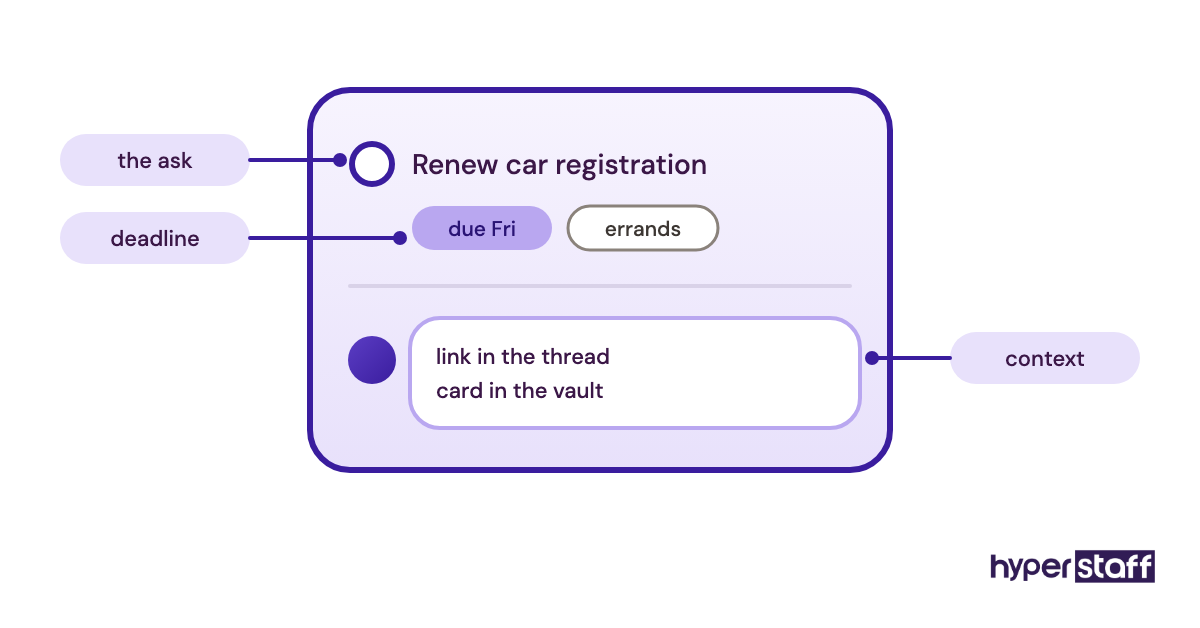
A shared Todoist project gives you one place to drop requests and your assistant one place to report back. Assign the task, add context in a comment and the whole history stays attached to it.
Pro is $5 a month billed yearly or $7 month to month, and Business is $8 to $10 per user, per Todoist's pricing page. For one assistant, a shared project on the free plan often does the job.
Pros
- Fastest task capture in this list
- Free plan works for one assistant
- Recurring tasks for bills and renewals
- Labels and filters for priority
- Apps on every major platform
Cons
- Poor home for long SOPs
- Custom reminders need Pro
- Five-project cap fills fast
- No built-in time tracking
- Assigning tasks requires a shared project
Where Todoist lands
Pick it if your requests are short and frequent. Our list of personal virtual assistant tasks makes a good first batch of projects.
5) Slack: Best for daily messages that need searching
Key highlights
- Free plan keeps 90 days of history
- Pro at $7.25 per user a month, billed yearly
- Threads keep requests apart
- One-to-one huddles on free
- Up to 10 app connections on free
Slack or WhatsApp for one assistant
Slack earns its place once messages need searching: threads keep each request separate, and last month's decision turns up in seconds. The free plan keeps 90 days of history, and Pro is $7.25 per user a month billed yearly, per Slack's pricing page.
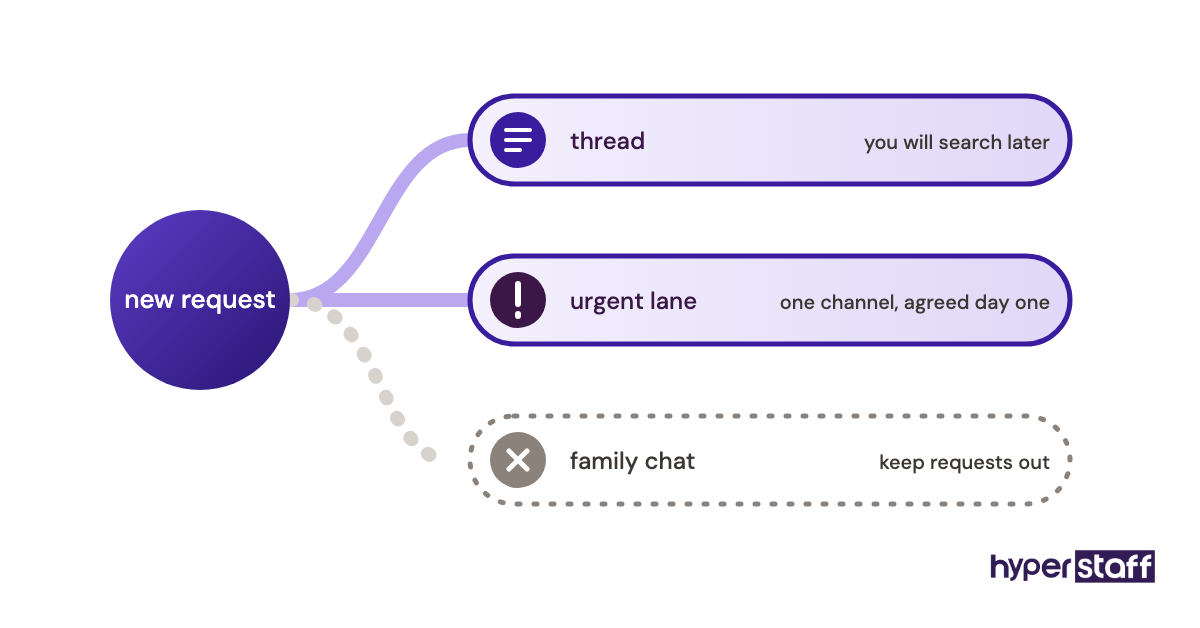
Plenty of people run a personal assistant on WhatsApp and never miss Slack. It holds up until requests mix with family chats and nothing can be found by topic.
Pros
- One thread per request
- Search across files and messages
- Do-not-disturb hours respect time zones
- Huddles for quick voice calls
- Connects to Google Calendar and Drive
Cons
- History past 90 days needs Pro
- One more app to check
- Busy channels bury urgent messages
- Heavy for light request volume
- Monthly billing costs more per user
Our honest read on Slack
Use it if you already work in Slack. Split channels show up often among common personal virtual assistant mistakes, so pick one.
6) Loom: Best for showing how you like things done
Key highlights
- Free plan with 25 videos
- 5-minute cap on free recordings
- Business at $18 per creator a month
- AI titles and summaries on Business + AI
- Time-stamped comments
Turning a Loom into a working SOP
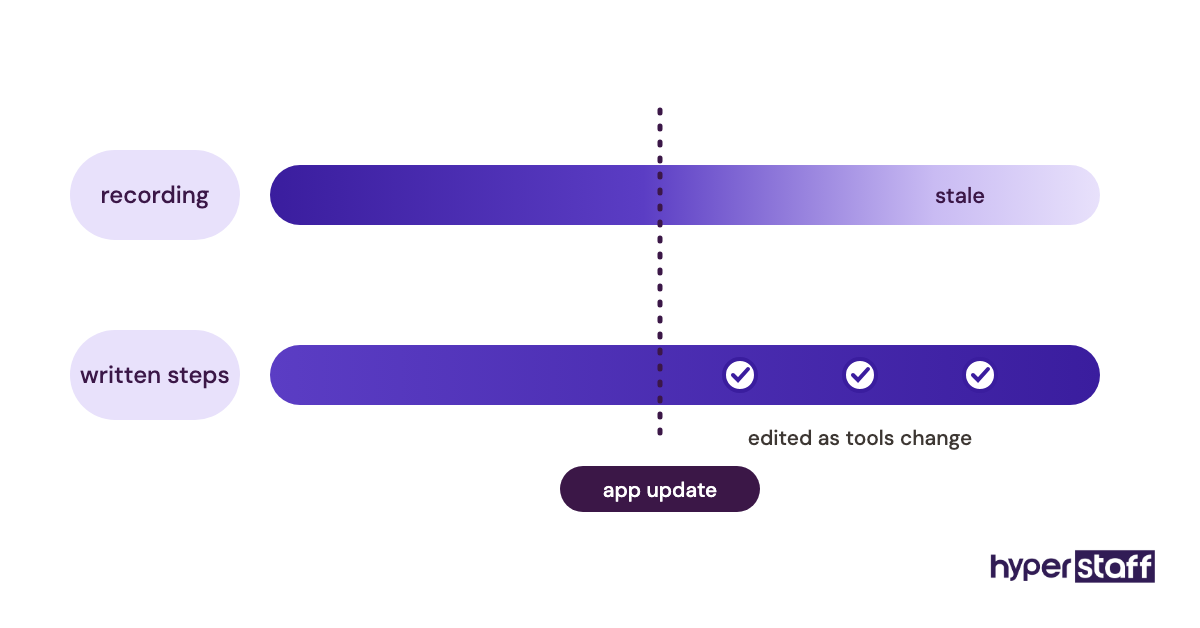
A Loom recording is the fastest way to show an assistant how you book travel, file receipts or answer one type of email. You talk while you click, so they get your reasoning along with the steps.
The free Starter plan allows 25 videos of up to 5 minutes, and paid plans list at $18 to $24 per creator a month, per Loom's pricing page. The 5-minute cap helps: a process that won't fit in five minutes is usually two processes.
Pros
- Faster than writing steps out
- Captures your tone and judgment calls
- Comments pin to the exact moment
- Free plan covers early training
- Assistants can record their work back
Cons
- Videos go stale when tools change
- Hard to skim compared with text
- 25-video cap on free
- 720p quality on free
- Long walkthroughs need a paid plan
Is Loom worth paying for?
Not at first. Record on the free plan while onboarding a personal virtual assistant, then have them turn each video into written steps.
7) Hubstaff: Best for tracking hours on a monthly bundle
Key highlights
- Time tracking against projects and tasks
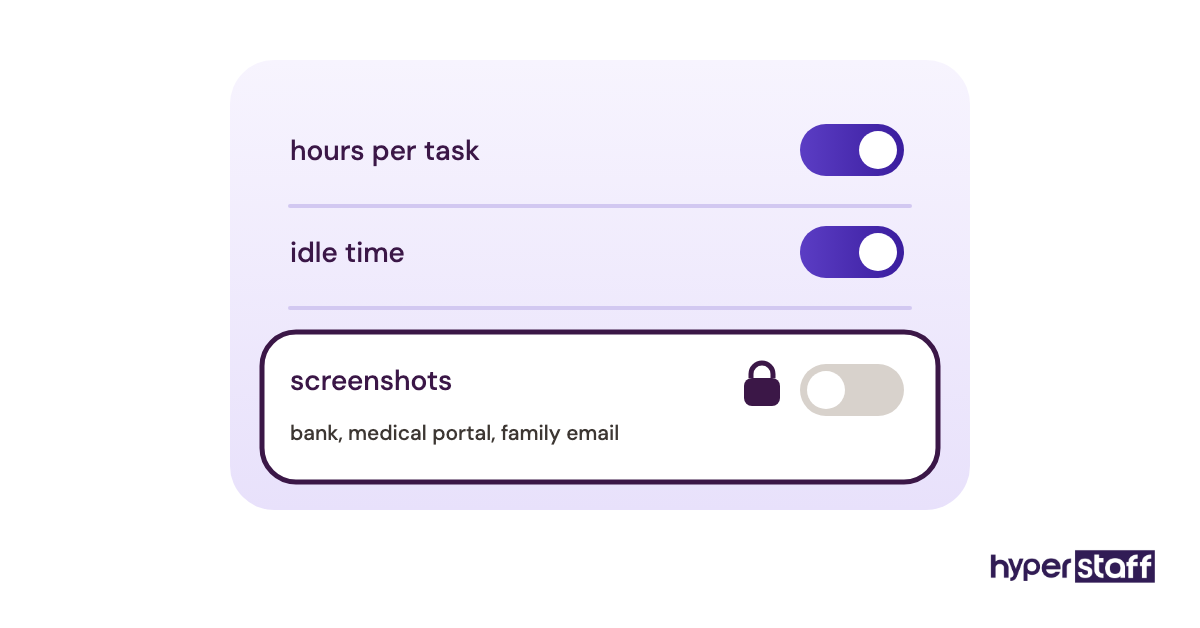
- Optional screenshots and activity levels
- Free plan for one seat
- Paid plans from about $5 per seat a month
- 14-day free trial
Hours tracking without watching every screen
Hubstaff logs time against projects, so you can see where a 40- or 80-hour month went. Paid plans run roughly $5 to $12 per seat a month depending on tier and billing, per Hubstaff's pricing page.
Screenshots are the setting to think hard about. A personal assistant works inside your bank, your medical portal and your family email, so screenshot capture can copy your own private data onto a third-party server.
Pros
- Clear hours report per task
- Fits hourly bundles well
- Idle-time detection
- Desktop and mobile apps
- Free single-seat plan
Cons
- Screenshots can capture your private data
- Activity scores count only keyboard and mouse use
- Add-ons raise the per-seat price
- Can feel like surveillance to a trusted assistant
- Another login to manage
When Hubstaff makes sense
Use it when you buy hours in bundles and want a task-level record. Turn screenshots off for any assistant who handles your finances or health.
How should a personal virtual assistant get access to your accounts?
A personal virtual assistant should get access through delegation or a shared vault, scoped to the tasks they handle. The way you grant access decides how fast you can take it back.
Decide access before the first day
Access is easier to set up when it's settled before hiring. Write the accounts and permission levels into the personal virtual assistant job description so candidates know what they'll touch.
Then test for it. Strong personal virtual assistant interview questions ask how a candidate has handled a client's logins and what they do when a code goes to your phone at 2 a.m.
Delegation first
Delegation means the assistant uses their own login with permission on yours, which Gmail, Google Calendar and Outlook support, and some banks and accounting apps offer as view-only roles. Every action carries their name.
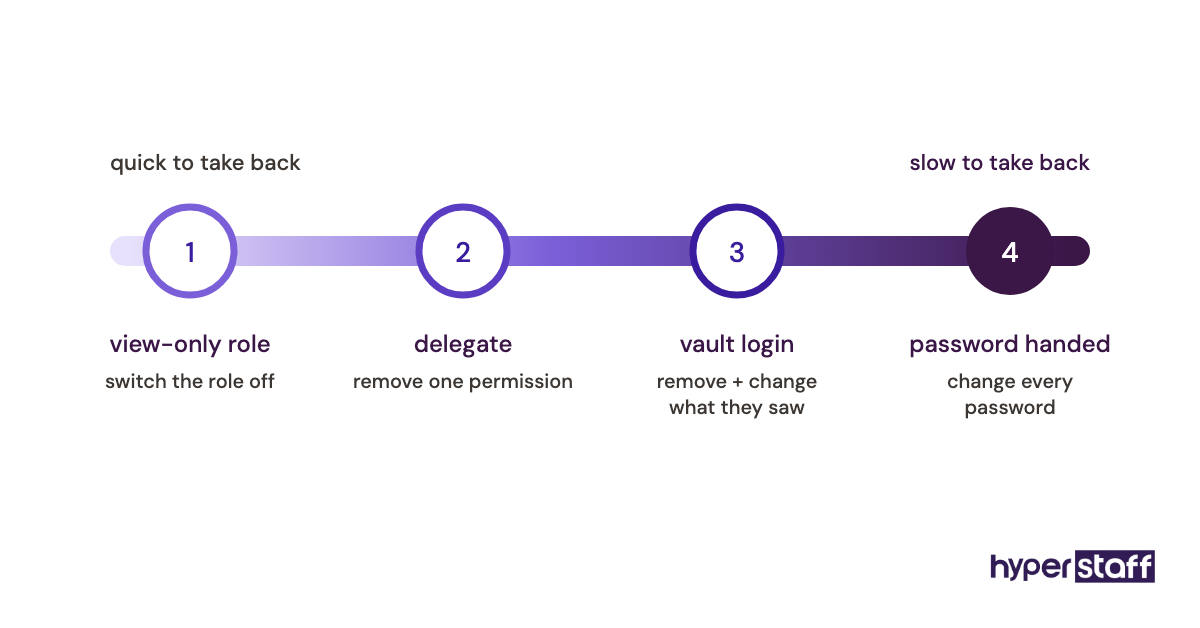
It also makes the exit simple. You remove one permission instead of changing a dozen passwords.
Shared logins second
Airline programs, shopping sites and utility portals rarely offer a delegate option. Those logins go in the shared vault, with one-time codes routed to the vault or a shared number.
A remote assistant can't lean across a desk and ask for a code, one practical gap in the personal virtual assistant vs in-house comparison. Plan the code route before a failed login locks the account.
Plan the exit on day one
Offboarding is where most tool setups break, because access granted piecemeal over months is hard to list from memory. Keep a running list of every account your assistant touches.
When you hire a personal virtual assistant through an agency, ask who keeps that list. Ask who changes the passwords at handover, too.
What to revoke
Remove delegate access in Gmail and Calendar, take the person out of the shared vault and any workspace, and end their active sessions. Then change every shared password they could view.
Do it the same day. A week's delay leaves live access with someone who no longer works for you.
What to keep
Keep the Loom videos, task history and written SOPs. They're the cheapest part of training the next person.
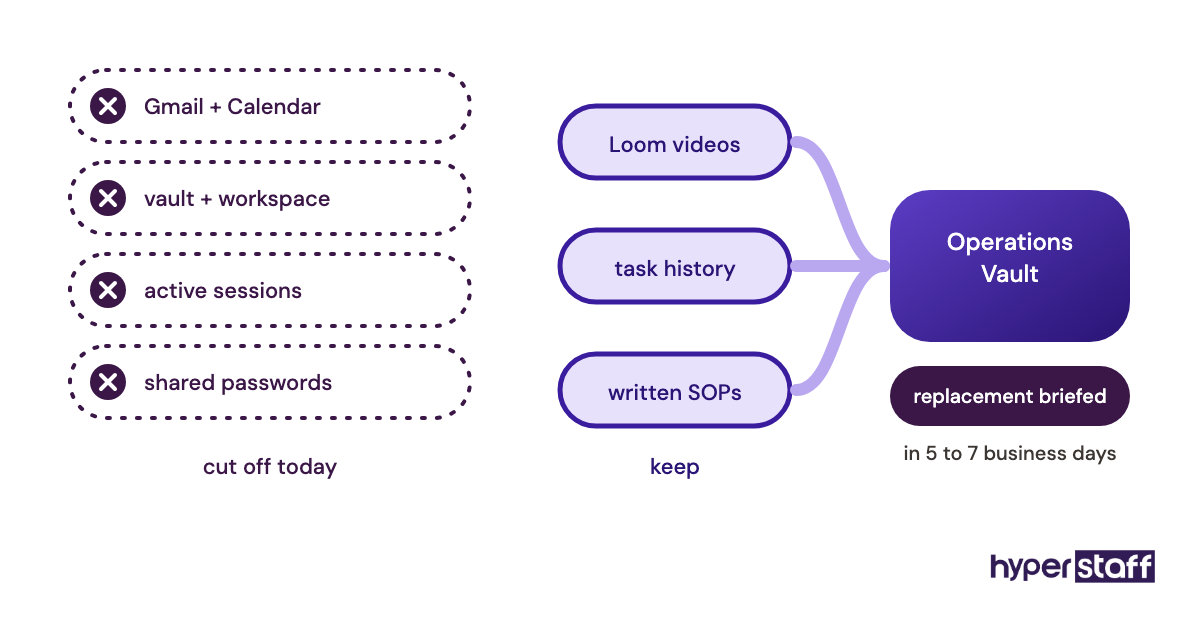
At Hyperstaff, that record lives in your Operations Vault, which is what a free replacement gets briefed from within 5 to 7 business days.
Disclaimer: This article is for general information only and is not legal, financial or security advice. Tool features and prices change often, so confirm current terms with each vendor before you buy, and review your bank's and providers' terms before sharing account access.
Common questions
What tools does a personal virtual assistant need on day one?
Day one needs email and calendar access, a password manager and one place to assign tasks. Chat, booking links, handover videos and time tracking can wait until the first week shows where requests pile up.
Should I pay for my VA's software subscriptions?
Yes, for any tool that holds your data. With the account in your name, you keep the history and control access when the assistant leaves.
Is it safe to give a personal assistant my bank login?
No. Use a view-only or authorized-user role where your bank offers one, because handing over your own banking password can breach your bank's terms. With no such role available, keep banking tasks on your side.
Can my virtual assistant use ChatGPT or other AI tools?
It depends on what goes into the prompt. Drafting emails and summarizing documents is fair use, but pasting medical, legal or financial details into a consumer AI account sends that data to another company, so set the rule in writing.
Are free personal virtual assistant tools enough?
For one assistant on a 40-hour bundle, mostly yes. Free Gmail delegation, Todoist and Calendly cover the core, and 1Password is the paid tool worth adding from the start.
Book a free 15 min call
We place a pre-vetted specialist in 5 business days, fully managed, from $3/hour.